Free Online PDF Editor
Make changes fast with Wrong PDF Editor online for free Edit & Sign PDF files online for free. Fill out PDF forms online. Change text, Add text to PDF documents. Edit existing PDF text. Add image to PDF Create links in PDF or or drawing lines, shapes, and signatures, without needing to switch between different PDF filler tools. Edit hyperlinks, add comments, also annotate PDF or draw freehand to make quick markings or organize information.
Nothing is uploaded anywhere — every edit happens right in your browser. No signup, no file limits, no watermarks.
By using Wrong PDF Editor you agree to our Terms of Use and Privacy Policy.
Need just one thing done?
Skip the full editor. Each of these tools does exactly one job, in your browser, in a couple of clicks.
How To Edit PDF Files Online For Free
Make changes fast with Wrong PDF Editor online for free. Edit & sign PDF files online for free, fill out PDF forms, change or add text to PDF documents, edit existing PDF text, add images, create links, or draw lines, shapes, and signatures — without needing to switch between different PDF tools. Edit hyperlinks, add comments, annotate a PDF, or draw freehand to make quick markings or organize information.
- 01
Upload your files
Select your PDF and start editing in seconds — nothing is uploaded to a server. Wrong PDF Editor runs entirely in your browser, so you can quickly add, erase, replace, or reformat text without ever sending your file anywhere.
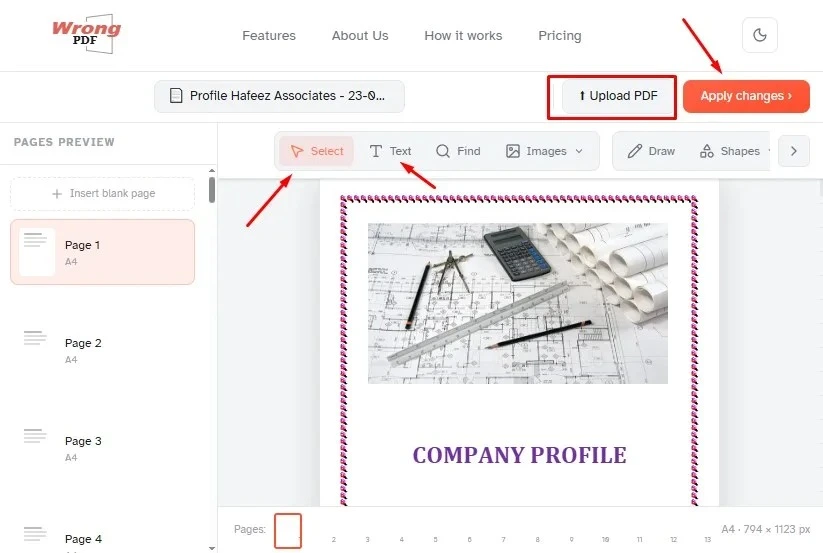
- 02
Add or type text on a PDF
First select the Text tool, then click anywhere on the page to add new text to the PDF.
- 03
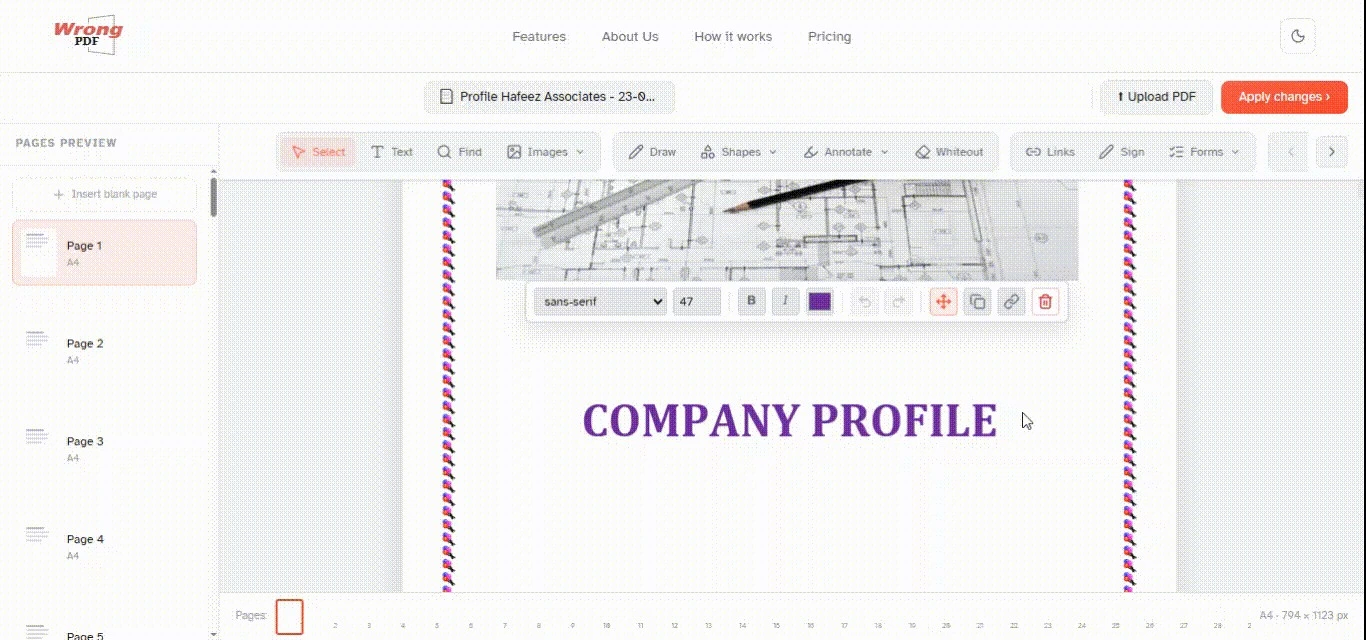
Change existing text of a PDF
Select the 'Select' tool from the top toolbar, then click any existing text to start editing it. Change font size, font family, and text color, or make it bold or italic.

- 04
Add image to PDF
Click 'Images' in the toolbar to select 'New Image', delete an existing image, or add a new stamp. Pick an image from your computer and add it to the page, then drag to move or resize it.

- 05
Sign or fill out PDF forms
Click any form field in the PDF and start typing. Select the Text tool to type text, and the Forms tool to add checkmarks, radio bullets, or dropdowns.

- 06
Add links and edit existing hyperlinks
Add new links to web URLs or pages in the document, and easily edit existing hyperlinks in the PDF using the Links tool.

- 07
Whiteout existing text
Cover text on the PDF page with a white — or color-matched — rectangle so the original content is no longer visible.

- 08
Add shapes
Click the Shapes tool to add rectangles, circles, lines, or arrows to a PDF page. Change the border or fill color, or adjust the size.
- 09
Find and replace in PDF
Easily find and replace words throughout your PDF.
- 10
Add form fields to PDF
Click the Forms menu and select the type of field you want to add: Text, Checkbox, Dropdown, or Radio buttons. Click the field type, place it on the page, then enter the field's name and, optionally, a default value.
- 11
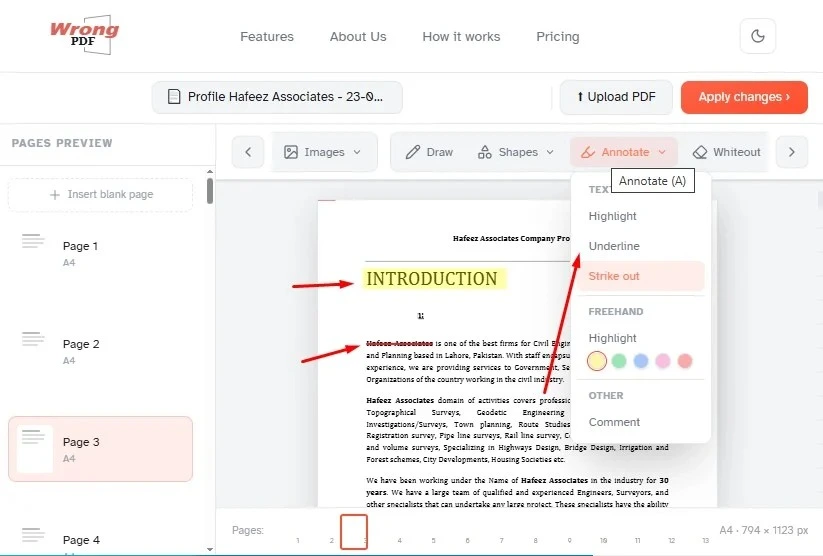
Annotate PDF pages
Use the annotator to strike through sensitive details, highlight important text, add sticky notes, and exchange comments for speedy document reviews. Click 'Annotate', choose a style, then select text on the page to apply it.
- 12
Save your changes
Click the 'Apply changes' button in the top right corner, then download your edited PDF document.
How To Sign PDF
In Wrong PDF Editor you can create an e-signature right in the document. Educators and administrators, real estate professionals, healthcare providers, financial professionals, HR professionals, and insurance agents use Wrong PDF Editor to edit and sign sensitive documents with ease — ensuring every interaction is accurate and professional.
- 01
Create a signature
Click 'Sign' and then 'Add Signature' to create a new signature.

There are 4 methods to create a signature:
- Type your name
- Draw your signature using your mouse or trackpad
- Upload an image with your signature
- Use a saved signature
- 02
Type your signature
Type your name and select the handwriting style you like best — choose from over 11 handwriting text styles.
- 03
Draw your signature
Using your trackpad, mouse, or pointer device, draw your signature on the screen and choose the color that suits your document.

- 04
Add signature to a PDF page
Click the save button to add your signature to the page. Scroll to where you want to place it, then click and drag. You can resize the signature by dragging its corners.

How to Type on a PDF
Upload your PDF file
Click the Upload button and select the PDF document you want to edit from your device.
Add text to your PDF
Choose the Text tool, then click anywhere on the PDF page to insert new text. Type and position your content exactly where you need it.
Apply and download
Once you've finished editing, click Apply Changes to save your updates. Then download your newly edited PDF file to your device.
How to Edit a PDF on Mac
Open Safari, Chrome, or any browser on your Mac and start editing instantly — no software to install, no plugins, nothing to download. Wrong PDF Editor runs entirely in your browser, and works exactly the same way on Windows, Linux, iPad, and Chromebook too.
Complete Tutorial — How to Use Wrong PDF
Stop paying for
PDF software.
Everything you need. Free. In your browser. Right now.